Overview
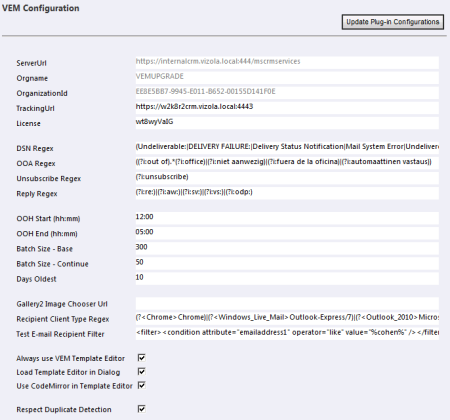
The solution configuration page for the VEM2011 managed solution is where you
should go immediately after install to set your required options and settings.
Most settings will be as you need them but you MUST set the TrackingUrl and
License Key each time you install or update VEM2011, then press [Update
Configuration]. This has the effect of storing all the settings in the plugin
configurations - from there is also accessible to whichever VEM component needs
it.
Do changes have immediate effect?
Not necessarily. You should be aware that by virtue of CRM plugin caching you may
see a small delay, for instance when setting a license key to disable the
EVALUATION banner appended to outgoing emails. The only way to circumvent this
is to kill any sandbox worker threads. In addition some UI settings are cached
in the browser session, so you might need to start a new browser session to see
the changes.
Mandatory settings
This page automatically completes the first three fields, but requires you to
input a valid TrackUrl and License before pressing [Update Configuration].
The TrackingUrl is the base address used to reach the VEM Monitor site, complete
with protocol and port. You will know this once you have installed the VEM Web
or Azure Component. Incorrect setting will prevent you using the filemanager
feature built into the template editor and all tracking of email opens and
clickthroughs.
Determination of response type
VEM uses regular expression matching on the incoming email subject line to
broadly determine whether it is a DSN (delivery status notification), OOA (out
of office autoreply), unsubscribe or reply. With care you can adjust these
pattern-matching expressions to suit you localization need.
Delayed sending parameters
If you choose to use the VEM delayed sending feature you have control over when
and how fast your email campaigns are sent out. OOH (Out Of Hours) Start and End
set the times during which sending is allowed. If you set 00:00 and 23:59 then
sending is permitted at all times. Each hour within this period VEM will run a
process to find and send emails. It will look for unsent emails within campaign
activities less than [Days Oldest] and send a batch sized according to the [-
Base] field. If this exceeds the found activity email count it will re-try the
next activity and send up to the [- Continue] field.
Gallery2 chooser address
As an alternative or indeed in addition to the VEM filemanager feature, you may
already have an internet-facing image repository that you wish to use as a
source of images to be used in email campaigns. VEM2011 therefore supports an
integration with Gallery2. To enable this feature it is only necessary to upload
the vem_g2image module to the Gallery2 server and add it's address in this
field. The exact HTML content that is inserted at cursor position is
customisable in a webresource.
Determination of email client type
VEM2011 stores the UA (User Agent) string reported in all interactions with the
VEM Monitor site and uses a configurable regular expression to parse this into a
viewable client type.
Email template test recipient filter
In conjunction with the [Email Test] feature available from the templates grid,
VEM presents a custom lookup view of suitable (internal) recipients with whom to
test emails will be sent. This field provides a filter in order to create a list
of suitable recipients.
Always use VEM template editor
When this option is selected, a template is always opened in the VEM template
editor rather than the native one.
Load VEM template editor in dialog
When this option is selected, the VEM template editor is opened in a modeless
dialog window. This has the advantage of not requiring additional authentication
in onpremise deployments.
CodeMirror source editing
When this option is selected, the VEM template editor uses a CodeMirror
integration to allow syntax colouring and enhanced layout, formatting and search
functions in source view.
Respect duplicate detection settings
When this option is selected, then any recipient profile updates actioned via
the VEM Monitor site will be subject to duplicate detection rules set up for
that entity (contact, account or lead). If the rules are not met, a message is
returned to the recipient advising of the update failure.
|